When your MacBook won’t turn on, it can feel like a serious problem right away.
Before you assume the worst (or start thinking about a replacement), take a breath.
This doesn’t always mean it’s beyond repair — whether it’s a MacBook Air or MacBook Pro.
In many cases, the problem is caused by a drained battery, charging issues, software glitches,
or minor hardware problems.
Below are the most common reasons a MacBook won’t turn on, what you can safely try at home, and when it’s time to get professional help.
Start with the Battery First
A completely drained battery is one of the most common reasons a MacBook
won’t turn on. When the battery hits 0%, the device can appear totally unresponsive.
What to do:
- Plug your MacBook into a charger you know works.
- Let it charge for at least 10–15 minutes.
- Press and hold the power button for a few seconds.
If the battery was fully drained, it may take a little time before you see any sign of life.
Be patient and avoid repeatedly pressing the power button.
 Make Sure the Charging Cable and Adapter Aren’t Damaged
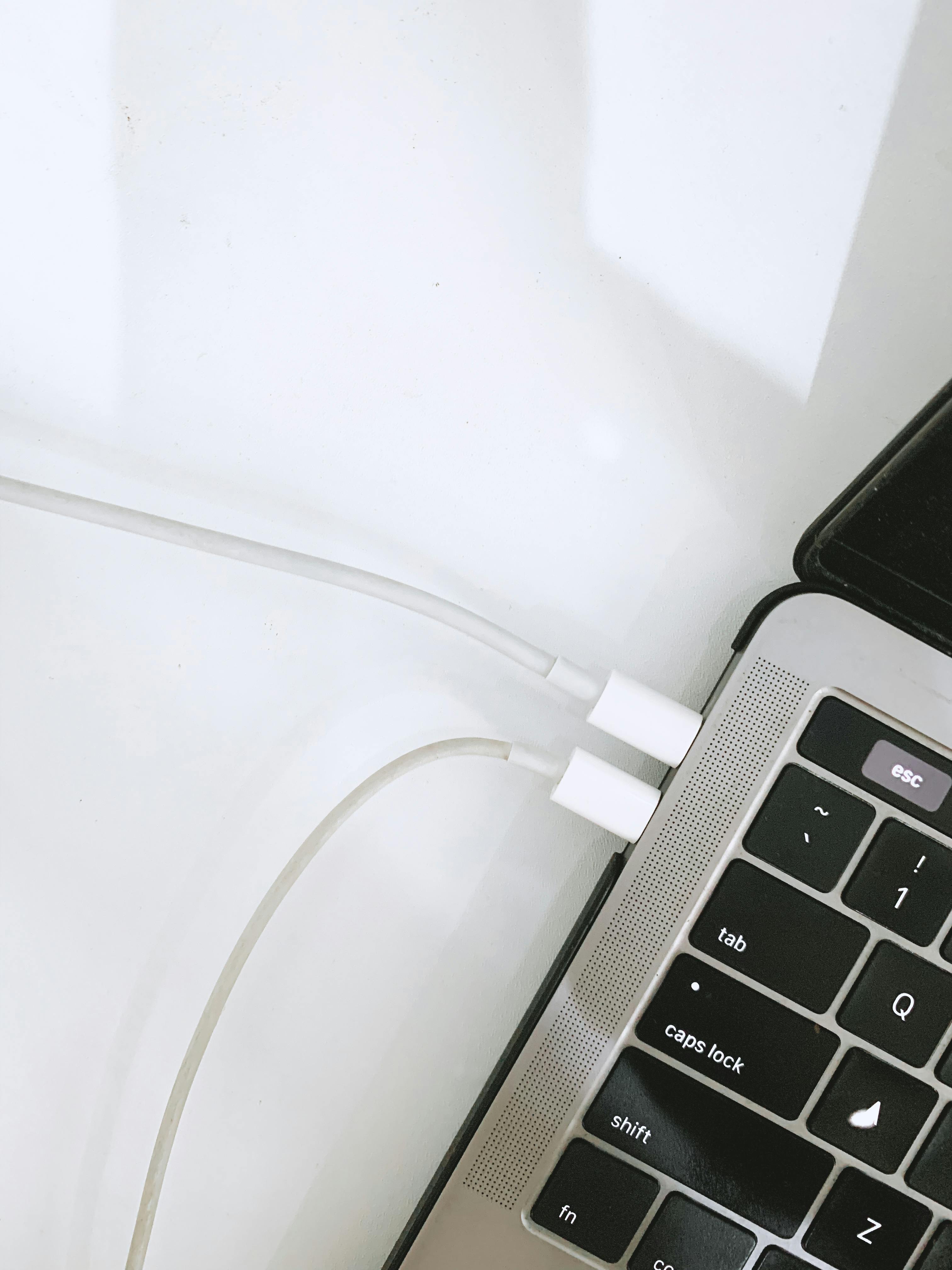
In some cases, the MacBook isn’t the problem at all; the charger or the cable is.
Frayed cables, damaged adapters, loose outlets, or debris in the charging port can
prevent power from reaching your device.
What to do:
- Inspect the charging cable and adapter for visible damage.
- Try a different outlet.
- Test with another compatible charger if available.
- Gently clean the charging port (avoid sharp objects).
If your MacBook doesn’t show a charging icon or light, the charger or cable is a strong suspect.
 Look Closely at the Screen
Sometimes a MacBook that appears “dead” is actually on, but the screen isn’t
displaying anything due to brightness settings, display glitches, or backlight issues.
What to do:
- Increase the screen brightness.
- Shine a light on the screen to see faint images.
- Listen for startup sounds or fan noise.
- Connect your MacBook to an external monitor (if possible).
If an external display works, the issue is likely related to the built-in screen or backlight, not the entire device.
 Try a Force Restart
If your MacBook froze during startup or got stuck because of a temporary software or macOS glitch,
it may not respond to normal power button presses. A force restart can help break that loop and get
the system running again.
What to do:
- Press and hold the power button (or Touch ID sensor) for about 10 seconds.
- Release it.
- Press the power button again normally.
If the Apple logo appears or the screen flickers, a force restart may resolve the issue.
 Disconnect All Accessories
External devices connected to your MacBook can sometimes interfere with the startup process,
especially if a peripheral isn’t working properly or is drawing too much power.
What to do:
- Unplug all connected devices, including USB drives, printers, and hubs.
- Try turning on your MacBook again with only the charger connected.
Disconnecting all external devices helps rule out accessory-related issues.
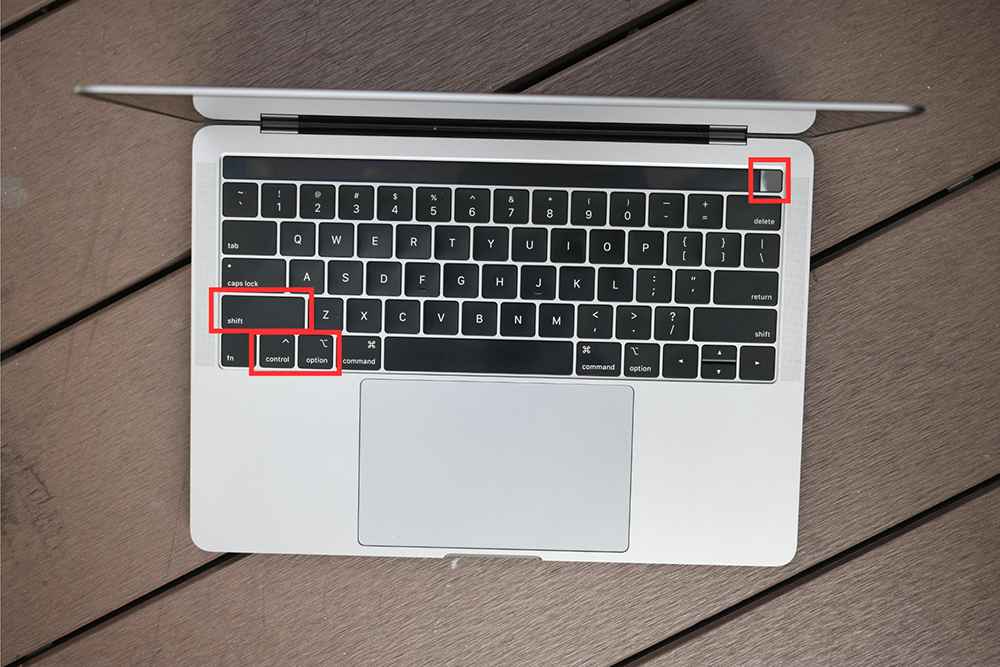 Reset the SMC (Intel MacBooks Only)
If you’re using an Intel-based MacBook, resetting the System Management Controller (SMC)
can help resolve power-related issues. The SMC controls power and charging behavior,
battery management, and sleep and wake functions.
What to do (for most Intel MacBooks):
- Shut down your MacBook.
- Hold Shift + Control + Option (on the left side) and the power button at the same time.
- Hold for 10 seconds, then release.
- Press the power button to turn it on.
For Apple silicon (M1, M2, M3) models, simply shutting down and turning the MacBook
back on after a short wait usually does the trick.
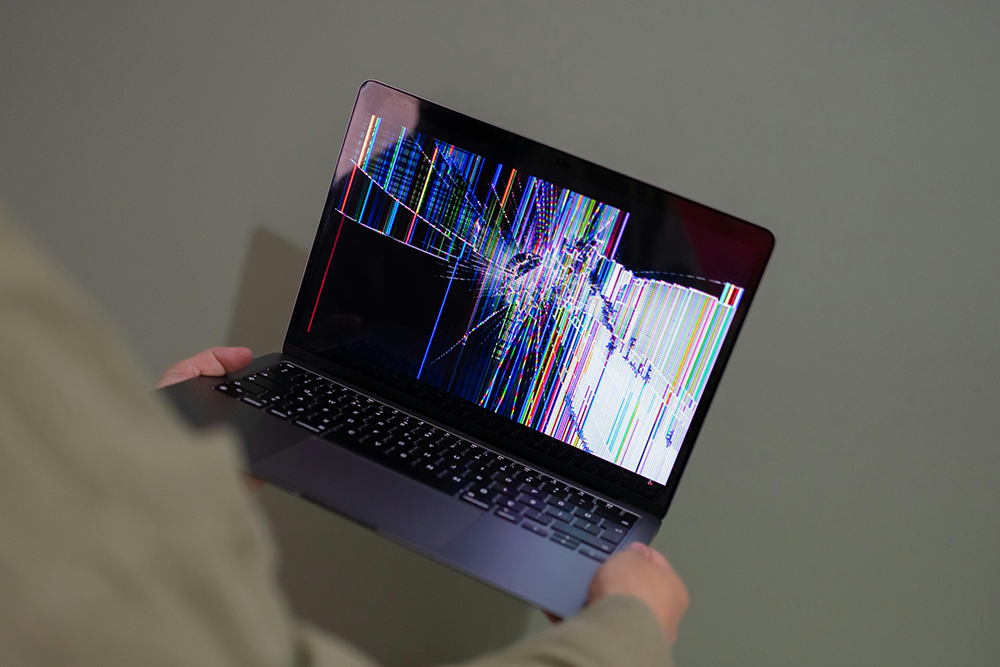 Check for Signs of Liquid or Physical Damage
Spills and drops can prevent a MacBook from turning on — sometimes immediately,
sometimes hours or days later. Your device might work fine at first, but refuse to turn on later.
Ask yourself:
- Was there a recent spill?
- Did your MacBook fall off a desk or table?
If yes, don’t keep trying to turn it on. Powering up a damaged or wet laptop
can make the problem worse. When your MacBook won’t turn on after a spill or drop,
a professional inspection is your safest move here.
FAQs
Why won’t my MacBook turn on even when plugged in?
If your MacBook won’t turn on while charging, the issue may be a faulty charger,
a damaged charging port, a dead battery, or an internal hardware failure. Trying a
different charger is a good first step.
How long should I charge a dead MacBook before turning it on?
If the battery is fully drained, charge your MacBook for at least 10–15
minutes before attempting to power it on. In some cases, it may take longer
for any signs of life to appear.
Can a MacBook turn on with a cracked screen?
Yes, a MacBook can power on even if the screen is damaged.
Connecting it to an external monitor can help confirm whether the issue is display-related.
Should I keep trying to turn on a MacBook after a liquid spill?
No. Repeatedly powering on a MacBook after liquid exposure can cause further damage.
It’s best to power it off and have it repaired professionally as soon as possible.
Your MacBook still won’t turn on? Get it fixed fast!
If you’ve tried everything and your MacBook still won’t turn on,
the issue may be due to hardware failure, such as a faulty battery, a
damaged logic board, or a power button issue. These aren’t fixable at home
and require professional help.
The good news is that The Repair Depot has experienced technicians who can accurately
identify the problem and repair your device. If your MacBook won’t turn on after multiple
attempts, was exposed to liquid, suffered a drop, or shows no signs of charging,
don’t wait –
Get a free
MacBook repair quote
today!