If your iPhone displays SOS or SOS Only, you probably can’t make regular calls, send text messages, or use mobile data. But this doesn’t necessarily mean something is seriously wrong with your iPhone. It usually means your iPhone has lost connection to your carrier’s network. The good news is that there are several simple things you can try to get your iPhone out of SOS mode.
Why Is My iPhone in SOS Mode?
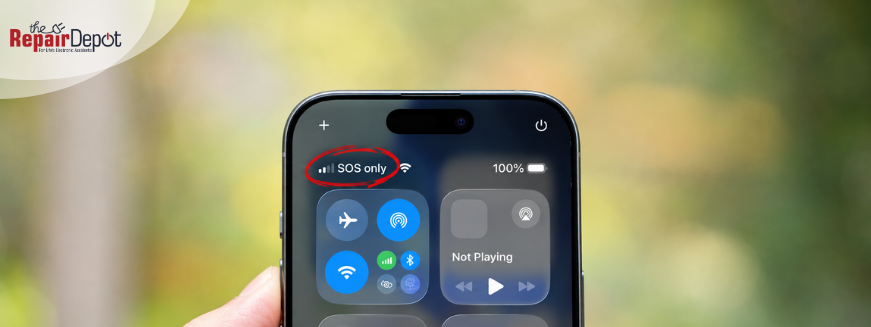
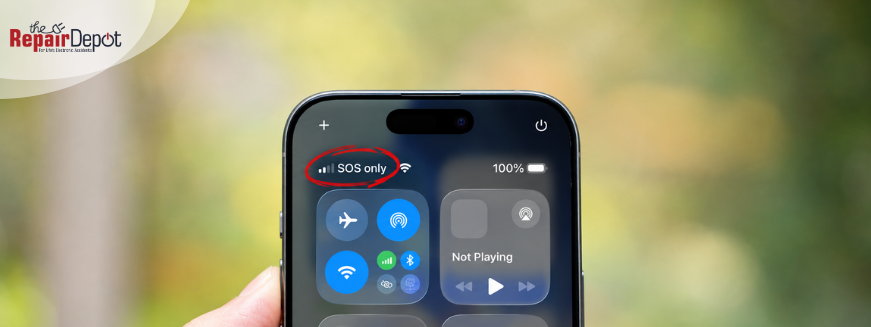
If you see SOS or SOS Only at the top of your iPhone, your phone isn't connected to your carrier’s network.
There are several reasons this can happen, including:
Poor or no cellular coverage
A temporary carrier outage
An issue with your cellular account
A problem with your SIM or eSIM
Outdated iOS or carrier settings
A temporary network connection problem
X
Broke your phone? Don't go broke fixing it.
Affordable Smartphone & iPhone Repair for Cracked Screens + more!
>
Here’s what to do if your phone is stuck in SOS mode.
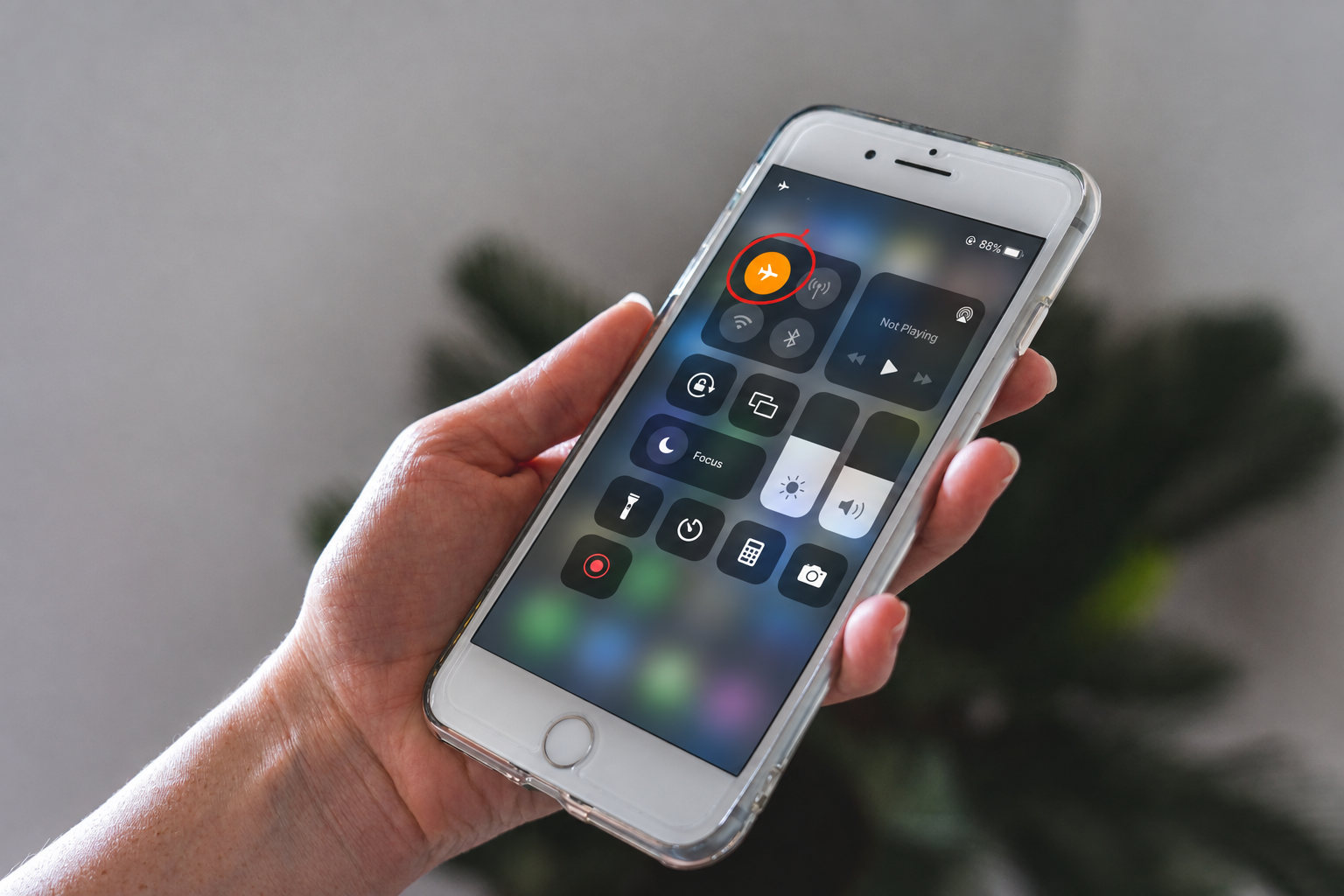
1. Turn Airplane Mode On and Off
This is one of the easiest things to try, and it can help your iPhone reconnect to your carrier’s network.
To toggle Airplane Mode: Open Settings and turn Airplane Mode on. Wait at least 15 seconds. Turn Airplane Mode off.
If SOS disappears and your regular cellular connection returns, your iPhone may have needed to reconnect to the network.
2. Restart Your iPhone
If turning Airplane Mode on and off didn't work, try restarting your iPhone.
A restart can clear a temporary software or connectivity issue and give your phone another chance to connect to your carrier's network.
After restarting, check the top of your screen. If you see your carrier name, signal bars, or 5G/LTE instead of SOS, your cellular connection has been restored.
3. Check Your Cellular Coverage
Sometimes, the problem isn't your iPhone but your location.
If you're somewhere with weak or no cellular coverage, your iPhone may display SOS or SOS Only. This can happen inside buildings, underground, in rural areas, or anywhere your carrier has limited coverage.
Try moving to another location and check whether your signal returns.
It's also worth checking whether other people using the same carrier are experiencing connectivity problems. If they are, the carrier may be experiencing a temporary outage.
4. Check Your SIM or eSIM
Your SIM or eSIM connects your iPhone to your cellular service. If there's an issue with your cellular line, your iPhone may not be able to connect to your carrier.
If you use an eSIM or Dual SIM, go to Settings > Cellular. Make sure your cellular line is turned on.
If you use a physical SIM, power off your iPhone and remove the SIM card tray with a SIM ejector tool. Make sure the SIM card is positioned correctly in the tray and isn't visibly damaged. Then put the tray back in, turn on your iPhone, and check whether the SOS message is gone.
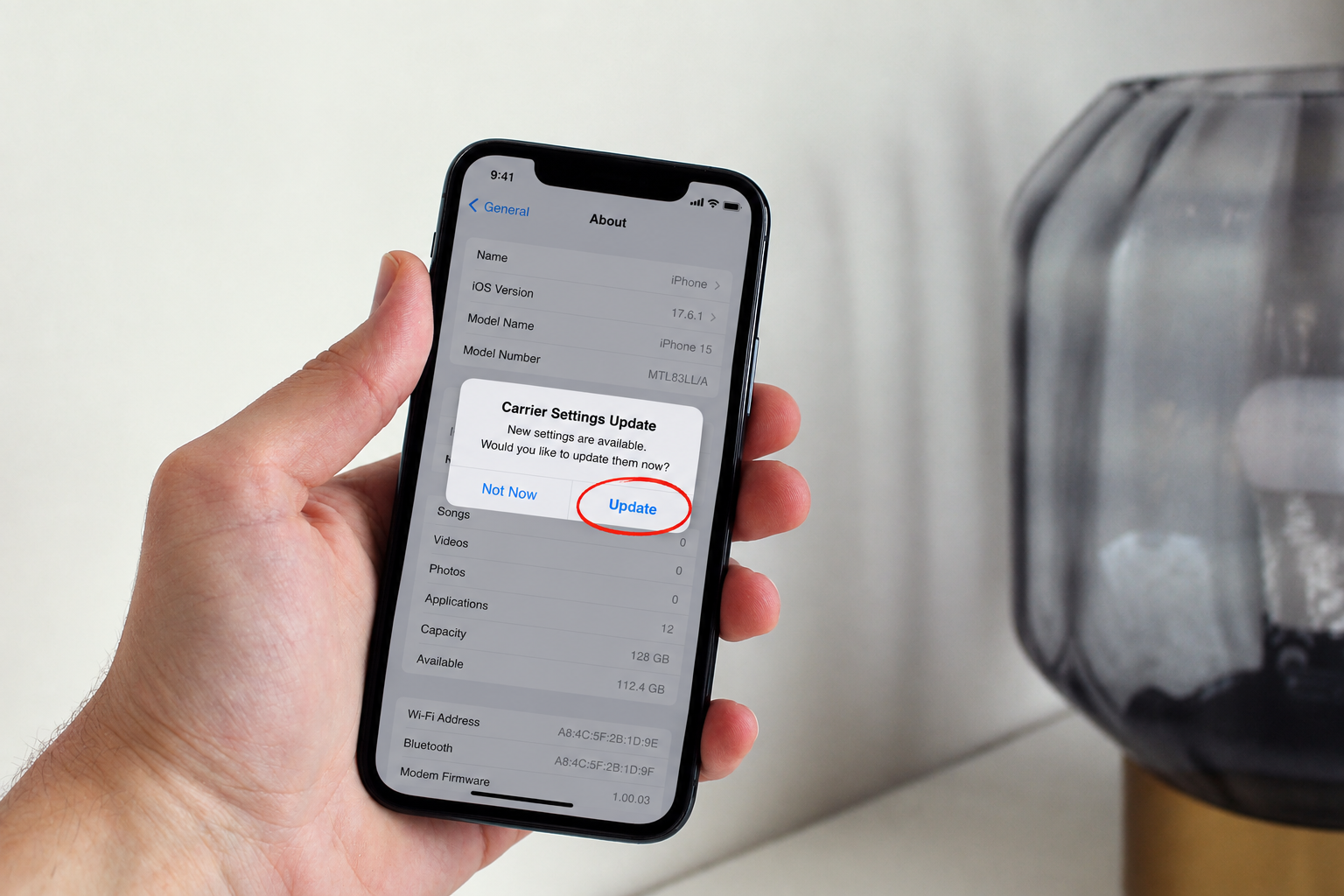
5. Check for a Carrier Settings Update
Your carrier may periodically release updates that improve cellular connectivity and support new network features.
To check for a carrier settings update: Connect your iPhone to Wi-Fi. Go to Settings > General > About. If an update is available, your iPhone should give you the option to install it.
This quick step is easy to overlook when troubleshooting an iPhone with no service or in SOS mode.
6. Update Your iPhone
It's also worth checking whether your iPhone is running the latest version of iOS.
To update your phone: Connect your iPhone to Wi-Fi. Go to Settings > General > Software Update.
If an update is available, follow the instructions to download and install it.
Keeping iOS up to date can help resolve software-related problems and ensure your iPhone has the latest fixes and improvements.
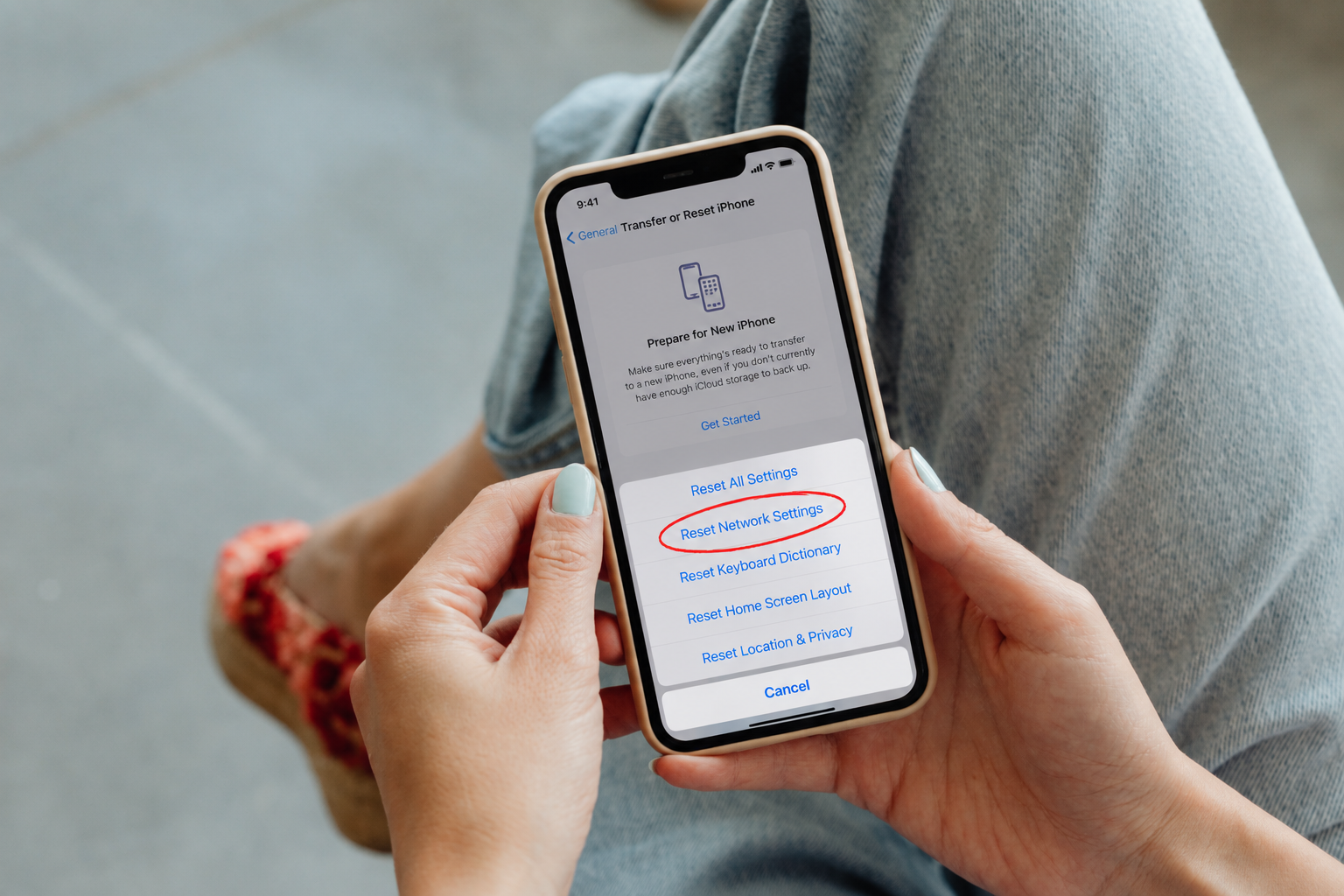
7. Reset Your Network Settings
If your iPhone still shows SOS or SOS Only, resetting your network settings may help.
To reset your network settings: Go to Settings > General > Transfer or Reset iPhone, and then tap Reset > Reset Network Settings.
Keep in mind that this isn't the same as restarting your phone. Resetting network settings removes saved network information, including saved Wi-Fi passwords and certain VPN and APN settings.
Because you'll need to reconnect to Wi-Fi networks afterward, consider this a later troubleshooting step, not the first thing you try.
8. Contact Your Carrier
If you've tried everything else and you still see SOS or SOS Only on your iPhone, contact your carrier. The issue could be related to your cellular account, network coverage, or a temporary outage.
Your carrier has access to account and network information you can't check directly from your iPhone, so reach out to them if the problem continues.
Don't Confuse SOS Mode with Emergency SOS
There's an important difference between seeing SOS in your status bar and actually using Emergency SOS.
When your iPhone displays SOS, it doesn't mean you've accidentally called emergency services. It means your iPhone isn't currently connected to your carrier’s network and may be able to make emergency calls through another available network.
Emergency SOS, on the other hand, is a feature designed to help you quickly contact emergency services in an actual emergency.
FAQs
Why does my iPhone say SOS?
Your iPhone says SOS or SOS Only when it isn't connected to your carrier’s network. This can happen because of poor or no coverage, a carrier outage, a SIM or eSIM issue, an account problem, or another connectivity issue.
How to turn off SOS on iPhone?
If your iPhone shows SOS or SOS Only, there isn't a setting you can just turn off to remove it. The message indicates that your iPhone is currently disconnected from your carrier’s network.
How to fix SOS on iPhone?
To get your iPhone out of SOS mode, first turn Airplane Mode on and off, then restart your iPhone. If this doesn't work, check your SIM or eSIM, carrier settings, and iOS version. If SOS continues to appear, contact your carrier.
Can I use Wi-Fi when my iPhone is in SOS mode?
Yes. Your iPhone can still connect to Wi-Fi and use internet-based features even without a regular cellular connection.
Does SOS mean I accidentally called emergency services?
No. Simply seeing SOS or SOS Only in your iPhone's status bar doesn't mean you've contacted emergency services. It indicates that your iPhone isn't connected to your carrier’s network, but you may still be able to make emergency calls.
Need iPhone Repair?
If you’re experiencing other issues with your iPhone, such as a cracked screen, damaged charging port, battery draining quickly, broken buttons, or other problems, our professional repair technicians can diagnose the issue and recommend the right solution.
Don’t let a damaged or malfunctioning iPhone get in the way of your day or become a bigger problem.








 1. Turn Airplane Mode On and Off
 5. Check for a Carrier Settings Update
 7. Reset Your Network Settings