You're in the middle of an assignment when your Chromebook suddenly loses its Wi-Fi connection. You reconnect, keep working, and then it happens again.
Chromebook Wi-Fi problems are fairly common, and the cause can range from your network to the device itself. The good news is that you can try several simple things before asking for help.
But first, let's see why your Chromebook may have Wi-Fi connectivity issues.
X
Wrap Up the School Year with A+ Chromebook Repairs!
Why Does My Chromebook Keep Disconnecting From Wi-Fi?
There are several possible reasons your Chromebook won't stay connected to Wi-Fi. Your wireless signal may be weak, your router could be having problems, or your Chromebook may need an update.
Sometimes, the problem is specific to the network you're using. For example, if your Chromebook works normally at home but keeps disconnecting at school, the issue could be related to the school's network or device settings.
Here is what to try if your Chromebook keeps disconnecting from Wi-Fi.
1. Check Your Wi-Fi Signal
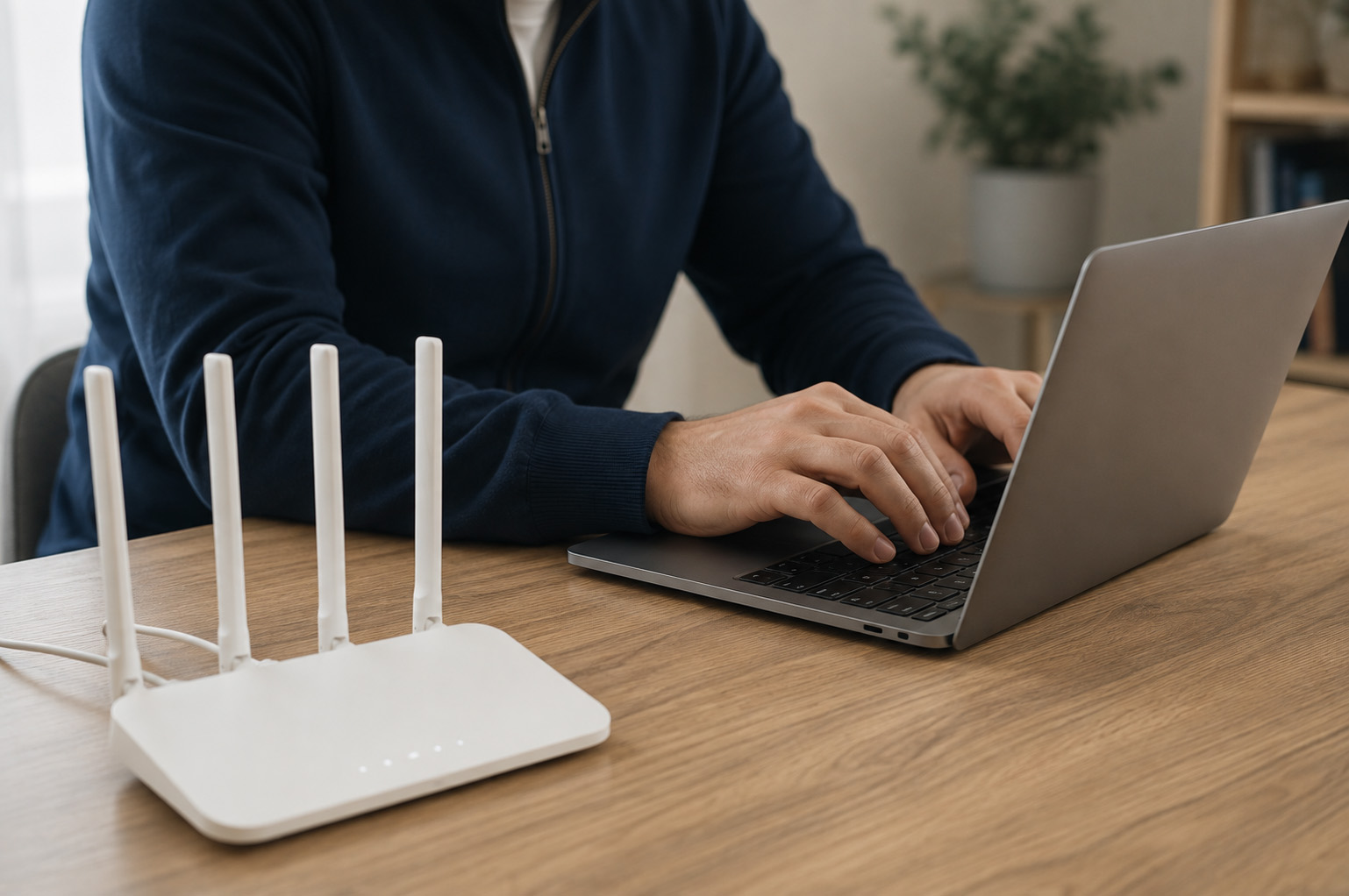
Start with the simplest possibility: your Chromebook may be too far from the router.
The farther you are from the router, the weaker the Wi-Fi signal can become. Walls, floors, furniture, and other electronics can also interfere with the connection.
What to do: Try moving closer to the router and see whether your Chromebook stays connected.
If the connection improves when you're closer to the router, the issue may be related to Wi-Fi coverage rather than your Chromebook.
2. Restart Your Router
Before troubleshooting your Chromebook, check your other devices.
Is your phone connected to the same Wi-Fi network? What about another laptop or tablet?
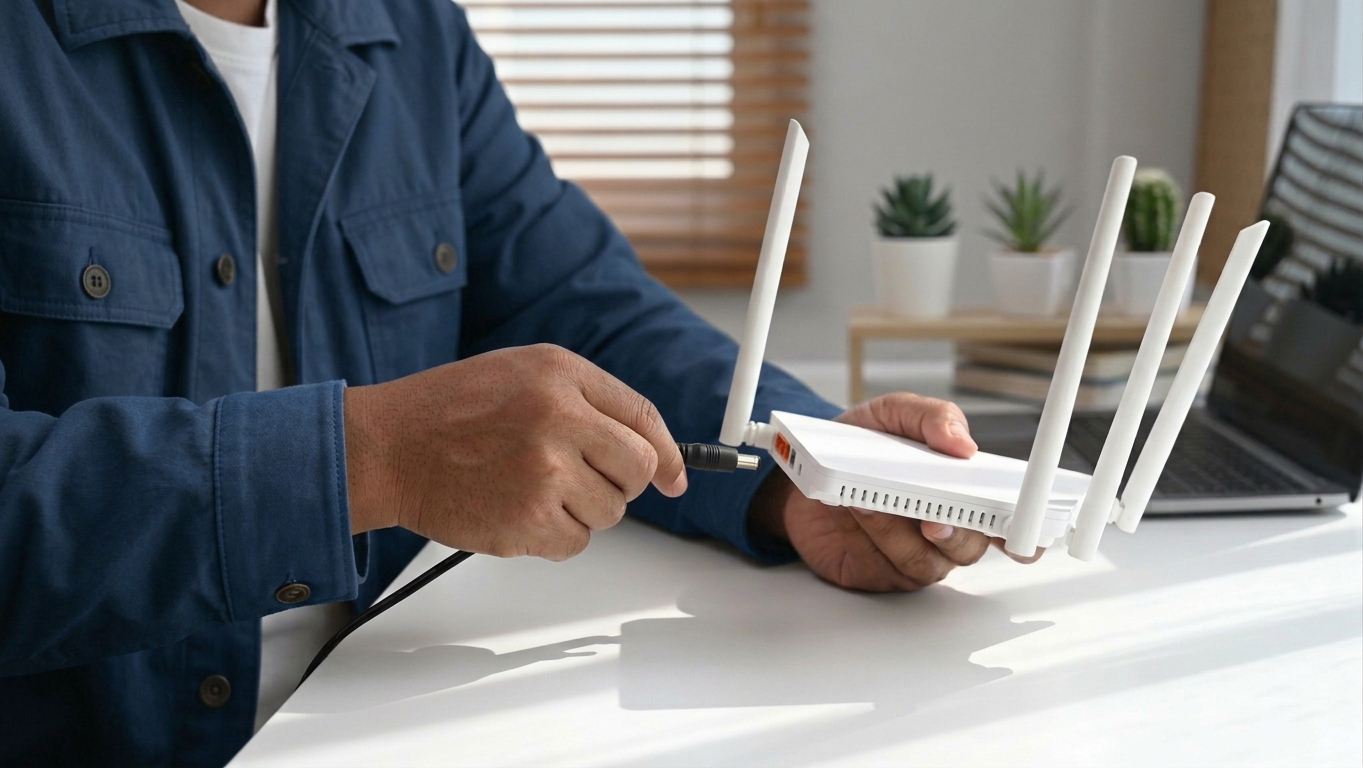
If other devices are losing their connection, the problem could be with your router, not your Chromebook. Restarting the router may help restore a stable connection.
How to do it: Unplug your router from the power source, wait around 30 seconds, and plug it back in. Give it a few minutes to reconnect to the internet, then try your Chromebook again.
If the Wi-Fi continues to drop on multiple devices, check your router's settings to see whether you can adjust the number of allowed devices, or contact your internet provider for help.
If only your Chromebook is losing its connection while everything else works normally, you can focus on troubleshooting the Chromebook itself.
3. Restart Your Chromebook
Yes, it's a simple fix – but sometimes that's all it takes.
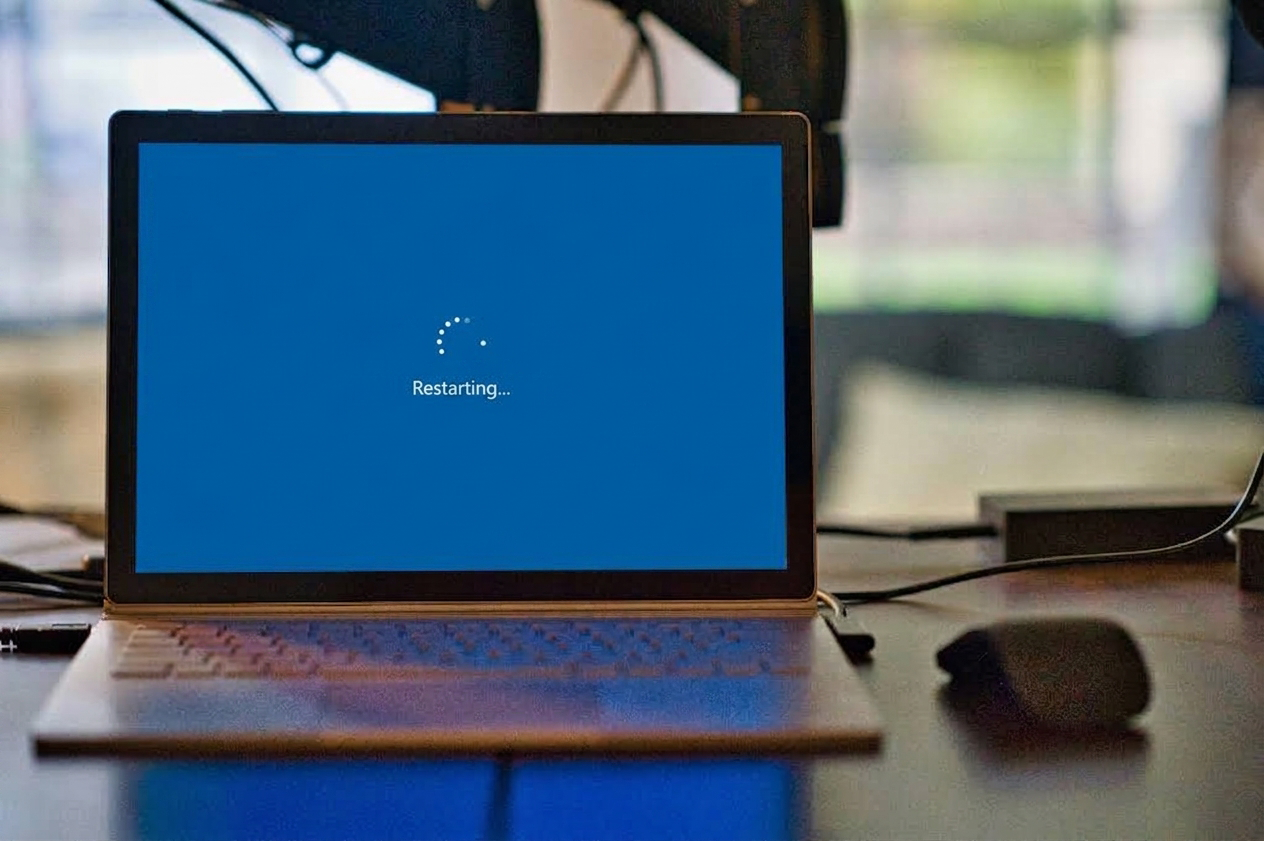
Restarting your Chromebook can clear temporary software problems that may be interfering with your Wi-Fi connection.
How to do it: Click the time in the bottom-right corner, select the Power icon, and choose Restart. Once your Chromebook turns back on, reconnect to Wi-Fi.
If the problem disappears, you may have been dealing with a temporary glitch. If the Chromebook continues disconnecting, move on to the next step.
4. Forget Your Wi-Fi Network and Reconnect
Your Chromebook saves information about the wireless networks you've connected to. Occasionally, that saved connection can cause problems.
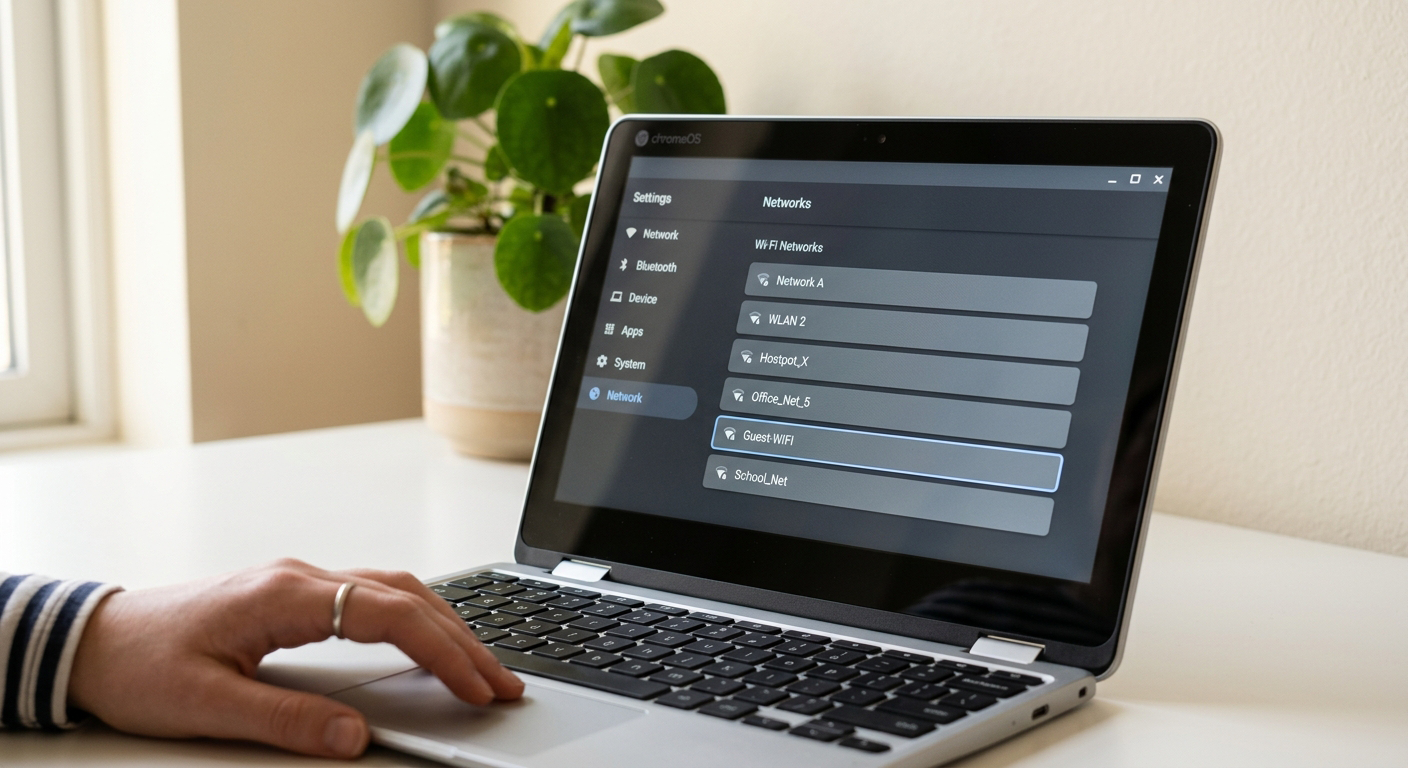
Try forgetting the Wi-Fi network and reconnecting.
How to do it: Click the time in the bottom-right corner, select Settings, then go to Network > Wi-Fi. Select your connected network and choose Forget. Then select the network again and enter your Wi-Fi password.
This gives your Chromebook a fresh connection and may resolve problems caused by incorrect or outdated network information.
5. Check for a ChromeOS Update
An outdated operating system can sometimes cause unexpected problems, including connectivity issues.
Check whether your Chromebook has a ChromeOS update available.
How to do it: Click the time in the bottom-right corner, open Settings, select About ChromeOS, and look for Check for updates. If an update is available, install it and restart your Chromebook if prompted.
Keeping ChromeOS updated also gives you access to bug fixes and security improvements.
6. Run Connectivity Diagnostics
If your Chromebook is still having trouble staying connected, use its built-in connectivity diagnostic tool to check for connection problems.
How to do it: Click the time in the bottom-right corner, select Settings, then go to About ChromeOS > Diagnostics > Connectivity.
If the diagnostic tool identifies an issue, follow the recommended steps to resolve it.
7. Consider Where You're Using the Chromebook
Does your Chromebook disconnect everywhere, or only in one location?
This is an important clue.
What to do: Try connecting your Chromebook to a different Wi-Fi network, such as your friend's network or a phone hotspot, and see if the problem continues.
If your Chromebook works normally at home but keeps disconnecting at school, the problem could be related to the school's Wi-Fi network, security settings, or device management.
School-issued Chromebooks may also have settings managed by the school's IT department. If so, avoid changing settings you don't understand. Instead, let your school's technology team investigate the issue.
The same applies if you're having problems on a workplace, library, or other managed network.
8. Check for a Hardware Problem
If you've tried everything above and your Chromebook still disconnects from Wi-Fi, you may have a hardware issue.
This is especially worth considering if the Wi-Fi problems started after you dropped your Chromebook, exposed it to liquid, or otherwise damaged it. For example, a damaged wireless component or another internal problem could affect the Chromebook's ability to maintain a connection.
What to do: Check your Chromebook for visible signs of damage, such as cracks, dents, or loose parts. Think back – Have you recently dropped your Chromebook, bumped it, or spilled something on it? If the Wi-Fi problems started after an incident like this, the device could have an internal hardware issue.
For school-issued Chromebooks, contact your school's IT or technology department and let them know about the Wi-Fi problem and any damage you've noticed.
Need a Chromebook repair?
If your Chromebook has physical damage or continues having connectivity problems across different networks, it may be time to have it inspected by a qualified repair technician. The Repair Depot specializes in Chromebook repairs and offers reliable and affordable solutions for individuals and K-12 schools. Our expert technicians can diagnose the issue and get your Chromebook working properly again.








 1. Check Your Wi-Fi Signal
 2. Restart Your Router
 3. Restart Your Chromebook
 4. Forget Your Wi-Fi Network and Reconnect
 7. Consider Where You're Using the Chromebook