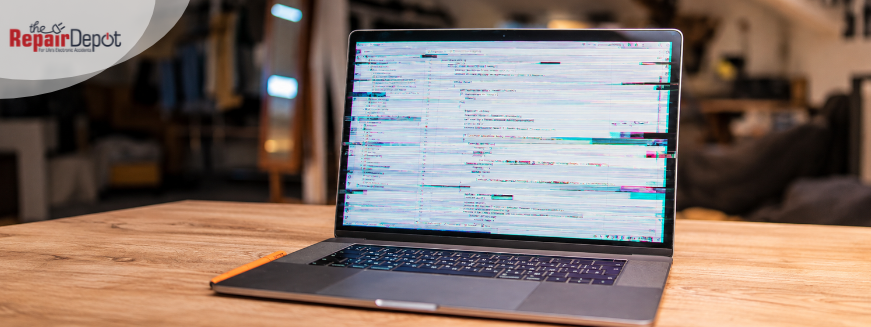
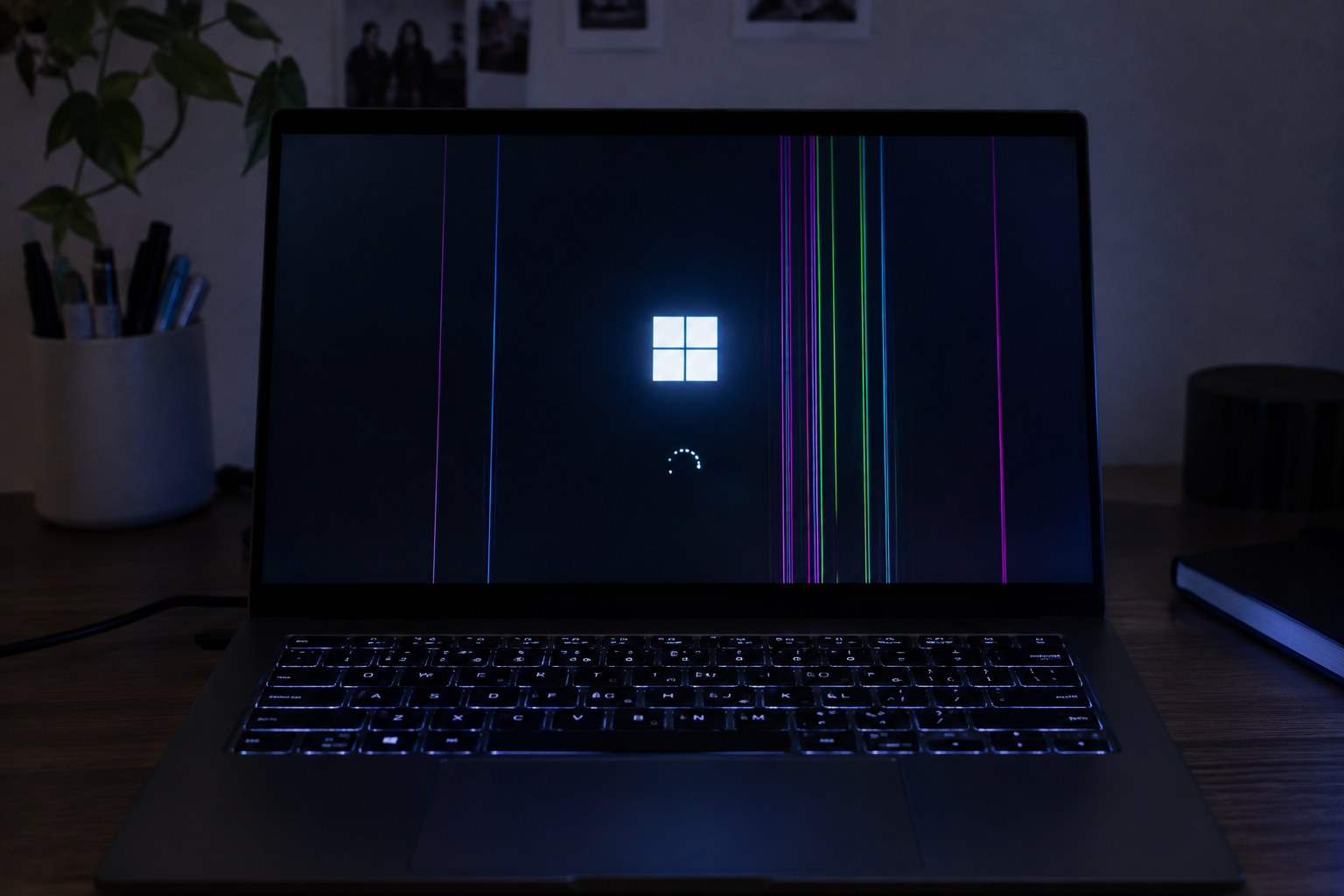
Seeing vertical or horizontal lines on your laptop screen? They can be distracting and make it difficult to use your laptop, but they don't always mean your screen needs replacing. Before exploring repair options, let's look at what might be causing the problem and how you can fix it.
Why Does My Laptop Screen Have Lines on It?
Vertical and horizontal lines on a laptop screen can appear for several reasons, including a damaged display panel, a loose or faulty display cable, a temporary system glitch, outdated or corrupted graphics drivers, or graphics card issues.
If your laptop screen started showing lines after a drop or accidental impact, the display itself may be damaged, even if the outer surface looks fine. However, lines can also appear without any obvious physical damage.
Overheating can also contribute to display glitches or visual distortions. Flickering lines may be related to either software or hardware problems, while lines that remain in the same place could indicate an issue with the screen panel or its connection.
X
We'll fix your laptop, good as new!
Get a Laptop Repair Quote. Fast, reliable service.
>
How to Fix Lines on a Laptop Screen
Before trying software fixes, check for signs of a hardware problem that may require professional repair. Physical damage or a faulty display connection can cause lines on your laptop screen that software troubleshooting won't resolve.
Check for Physical Damage
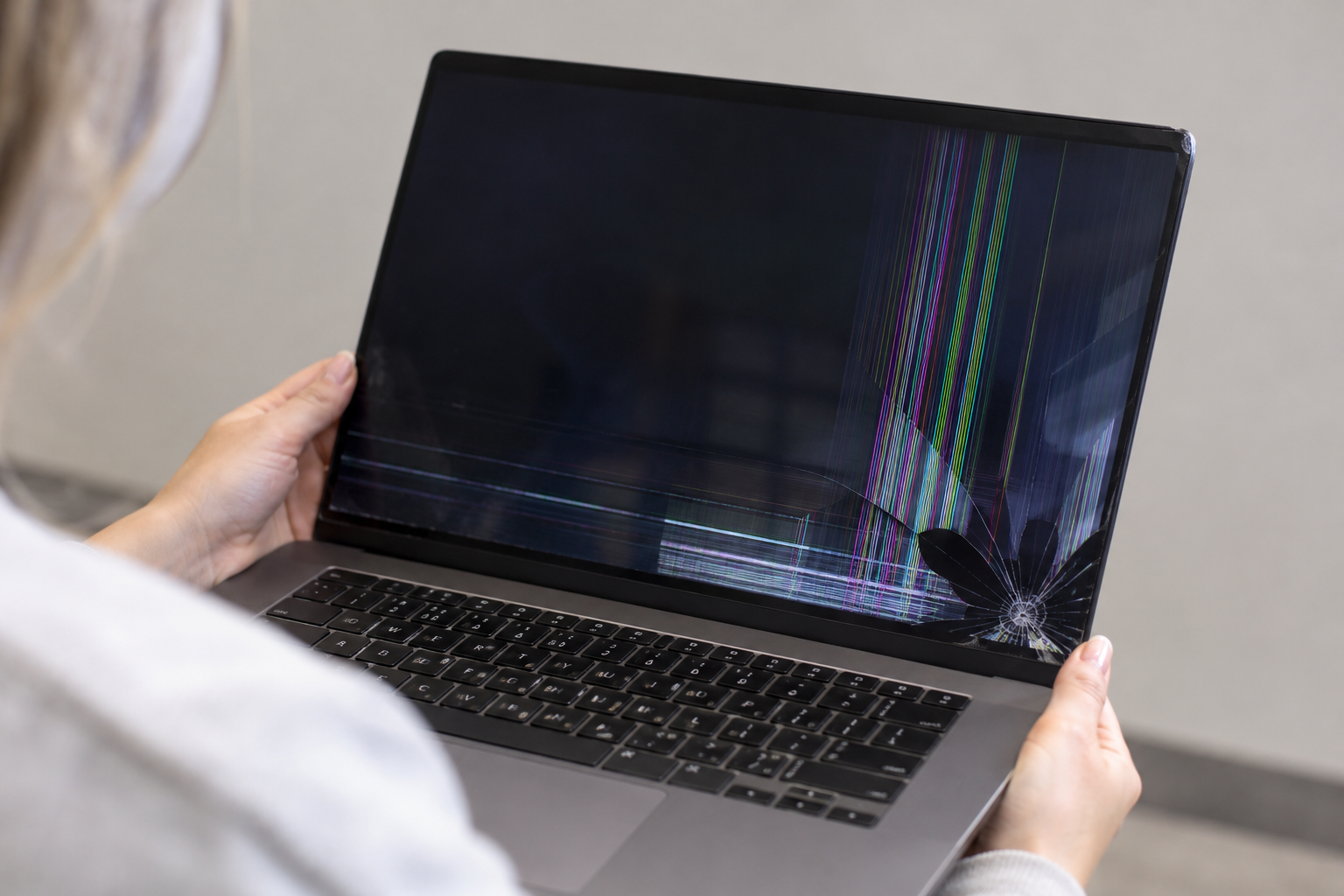
Think about whether the lines appeared after you dropped your laptop, bumped it against something, or put pressure on the screen. Look for cracks, black spots, colored lines, or unusual patches on the display.
Even if the outer surface looks fine, the LCD panel underneath may be damaged. If the lines appeared immediately after an impact, you notice visible damage, or the problem is getting worse, have a technician inspect your laptop.
See Whether the Lines Change When You Move the Screen
If the lines flicker, disappear, or change when you adjust the laptop lid, there may be a problem with the display cable, its connection, or the screen panel.
With your laptop on a stable surface, slowly move the lid back and forth and watch for changes. Don't force the lid or repeatedly move it to reproduce the problem.
If the lines change with the screen's position, a technician can inspect the display and its connections to identify the cause.
Check Whether the Lines Appear During Startup
Pay attention to when the lines appear. Do they show up as soon as you turn on your laptop, even before the operating system loads?
If they're visible on the manufacturer's logo screen or in the BIOS/UEFI menu before the operating system loads, a hardware problem becomes more likely.
If the lines appear only after the operating system loads, a software or graphics driver issue may be responsible.
You don't need to change any BIOS settings for this check. Simply observe the screen during startup.
Connect Your Laptop to an External Monitor
This is one of the most useful ways to narrow down the problem.
Connect your laptop to an external monitor or TV using a compatible HDMI or USB-C cable. Check whether the lines appear on the external screen as well.
No lines on the external monitor: The problem may be with the laptop's built-in screen or its display connection.
Lines on both screens: The problem may be with the graphics card or its drivers.
This test isn't definitive, but it can help you decide what to do next.
If you haven't noticed any signs of physical damage, the problem may be software-related. In that case, you can try a few simple solutions at home.
Restart Your Laptop
A temporary system glitch can sometimes affect your laptop's display. Restarting your laptop is a simple step that may resolve the issue.
Save your work, shut down your laptop, wait a few seconds, and turn it back on. Check whether the lines are still visible. If they remain, move on to the next step.
Adjust Your Display Settings
Your display settings could also be causing the problem. Make sure your laptop uses its recommended screen resolution and a supported refresh rate.
On Windows, go to Settings > System > Display to check your resolution. Then open Advanced display to review the refresh rate.
On a Mac, open System Settings > Displays and check the available display options.
If the lines don't disappear after adjusting the settings, try the next solution.
Update Your Graphics Driver
Your graphics driver helps your laptop display images correctly. If the driver is outdated, corrupted, or incompatible with a recent update, it may contribute to display issues.
On Windows, open Device Manager, expand Display adapters, right-click your graphics device, and select Update driver. You can also check Windows Update or your laptop manufacturer's official support website for available updates.
On a Mac, graphics updates are generally included with macOS updates, so go to System Settings > General > Software Update.
Restart your laptop after installing any updates and see whether the lines are gone.
Need Professional Laptop Repair?
If the lines remain or you suspect physical damage, it may be time to have a professional check your laptop. Persistent lines, flickering, black spots, or visible screen damage can indicate a hardware problem that software fixes won't resolve.
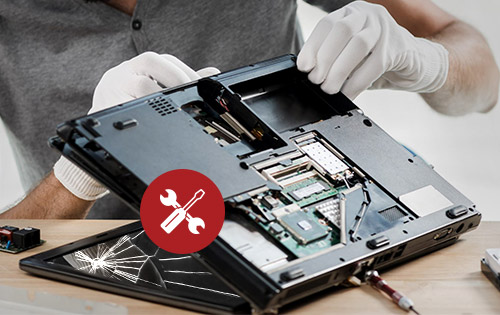
At The Repair Depot, our expert technicians have years of experience handling laptop repairs, from cracked screens and display issues to charging problems, battery replacements, and more. We can help identify what's causing the problem and recommend the right repair for your device.





 Check for Physical Damage
 Check Whether the Lines Appear During Startup
 Restart Your Laptop