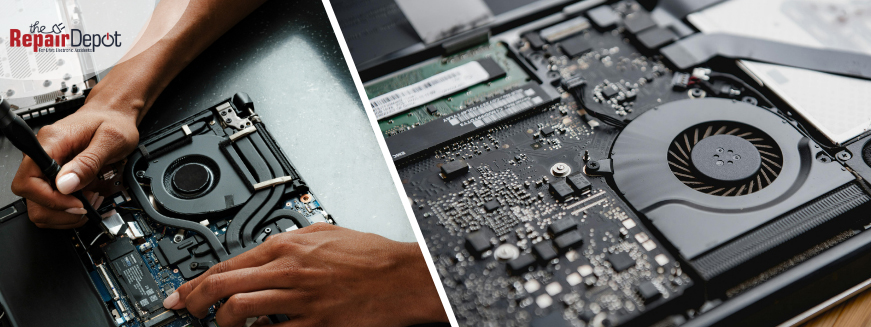
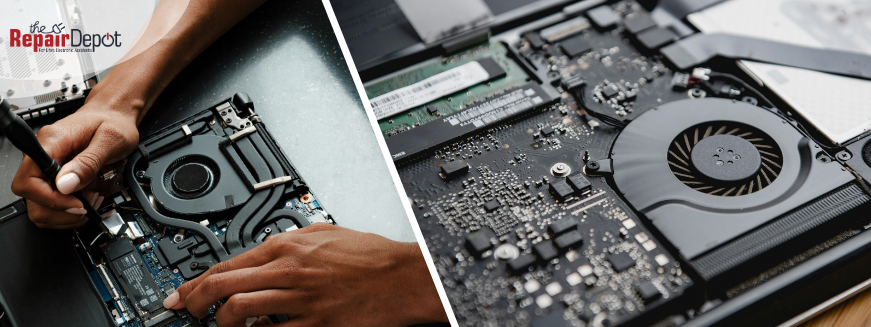
Your laptop fan has one job: to keep your device cool. When the internal temperature rises, the fan spins faster—which is why you start to hear more noise. Some fan noise is completely normal, especially when your laptop is handling demanding tasks. But if your laptop fan is loud all the time, it’s usually a sign your device is working harder than usual or struggling to stay cool.
Let’s take a closer look at why it happens—and what you can actually do to fix it.
Why Is My Laptop Fan So Loud?
Your laptop fan gets louder when your device heats up. That’s normal – but constant noise often means something isn’t right. And it usually comes down to one of these issues:
- Dust buildup is blocking airflow and trapping heat.
- Too many apps are running in the background.
- Poor ventilation (like using your laptop on a bed or couch).
- Demanding tasks like gaming, editing, or multitasking.
- Overheating issues caused by aging hardware or worn thermal paste.
- A failing or damaged fan that isn’t working properly (grinding or rattling sounds).
Now that you know what may be causing the noise, let’s go through how to fix it step by step.
How to Fix a Loud Laptop Fan
The good news is that most laptop fan noise issues are easy to fix with a few simple steps.
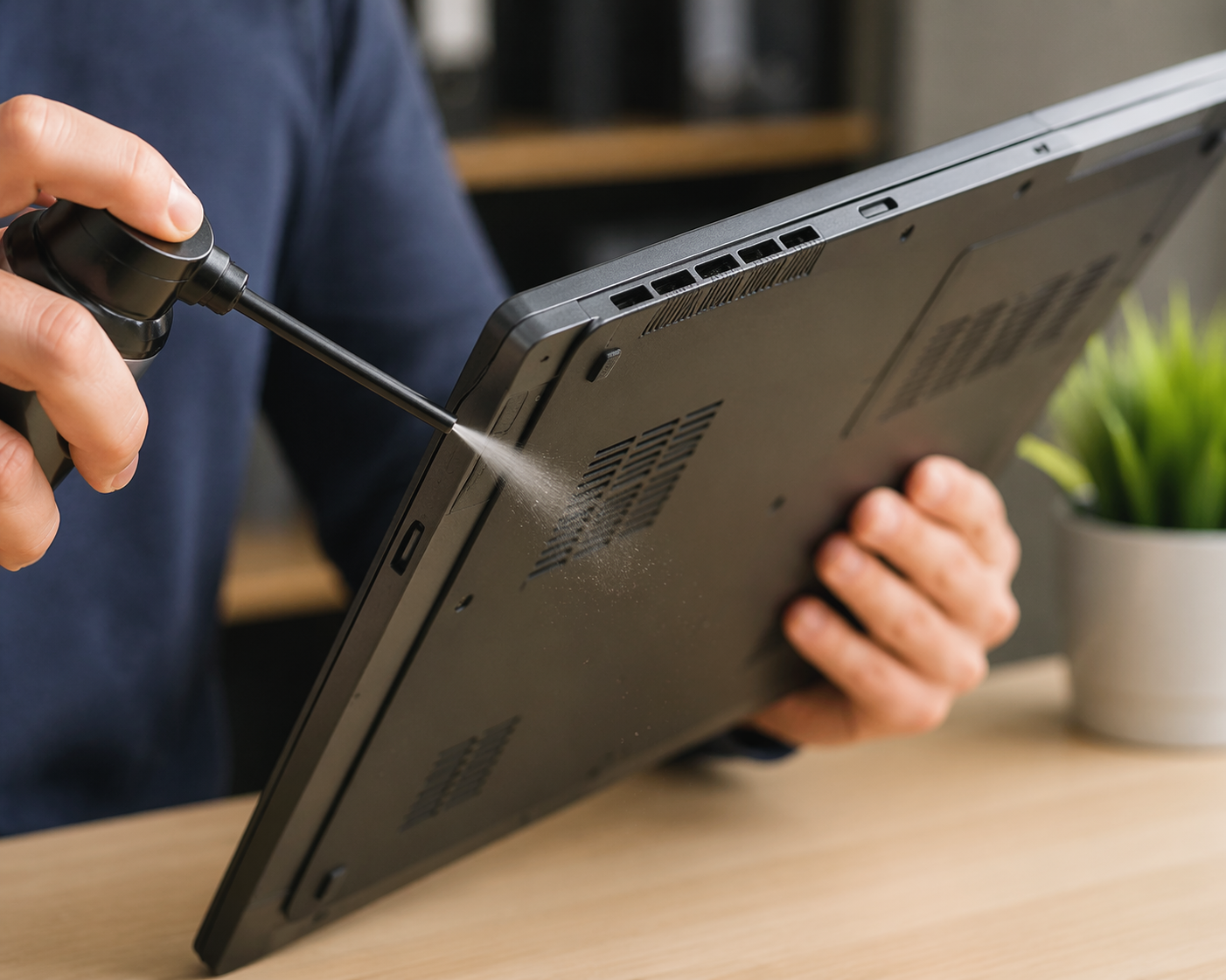 Clean Your Laptop Fan and Vents
Dust is one of the most common reasons for a loud laptop fan.
Over time, dust builds up inside your laptop, blocking airflow. This traps heat inside, forcing the fan to work harder—and louder—to keep things cool.
How to clean your fan without opening your laptop:
- Turn off your laptop and unplug it.
- Use compressed air to blow dust out of the vents.
- Focus on the sides and the bottom where airflow happens.
- Use short bursts of air (don’t spray continuously).
Quick tip: Hold your laptop at an angle while cleaning to help loosen trapped dust.
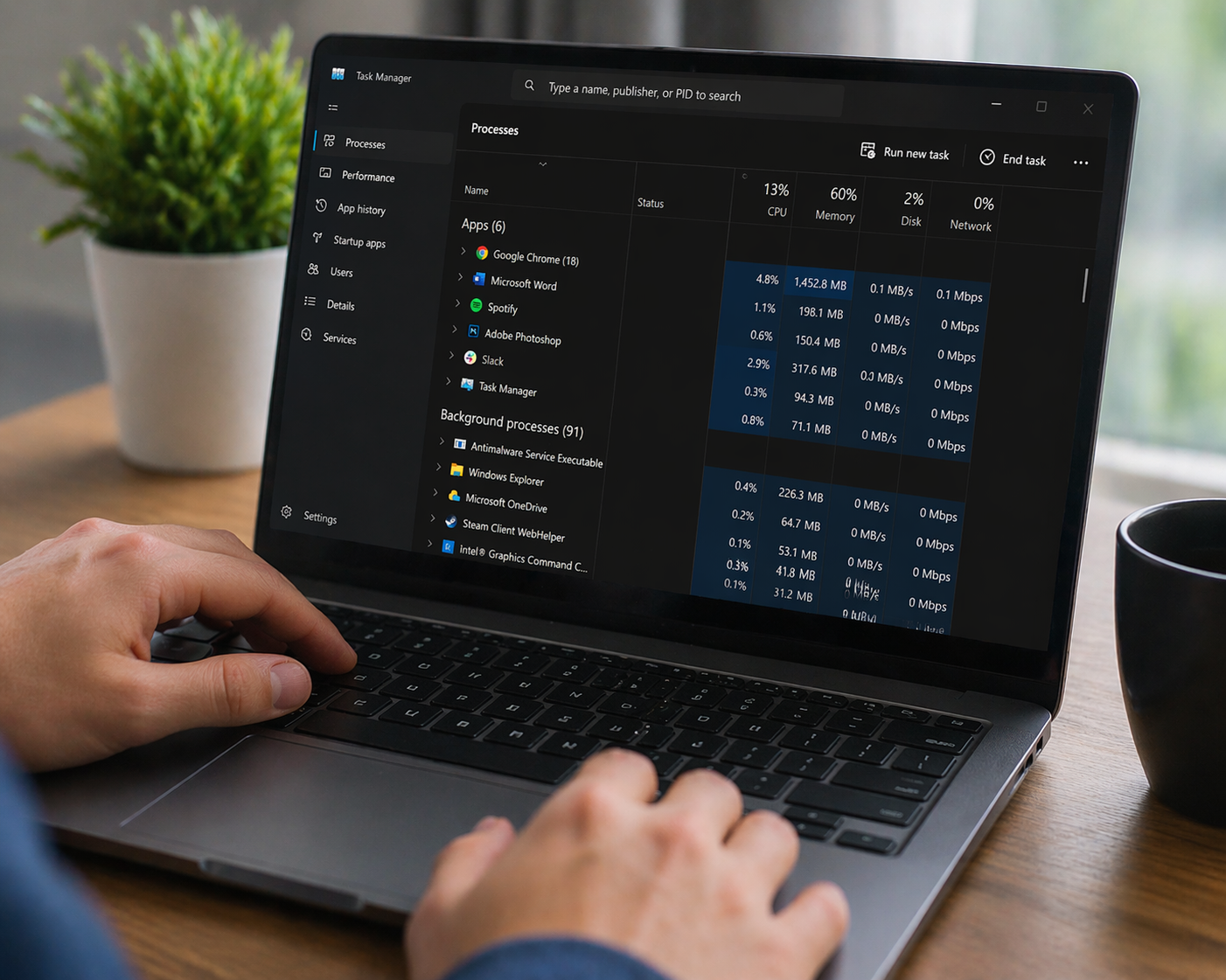 Close Unnecessary Background Apps
Sometimes your laptop fan is loud simply because your system is under pressure—even if you’re not actively doing much.
Background apps and processes can quietly use up CPU power, causing your laptop to heat up and the fan to run louder.
How to close unused apps to reduce fan noise:
- Open Task Manager (Windows) or Activity Monitor (Mac).
- Check which apps are using the most CPU.
- Close the apps you don’t need.
Quick tip: If your laptop fan is always running, this is one of the fastest ways to fix it.
 Improve Airflow
Where you use your laptop can make a big difference.
Soft surfaces like beds, couches, or blankets can block the vents and trap heat. When airflow is restricted, your laptop heats up faster, and the fan has to work harder to keep it cool.
How to improve airflow around your laptop:
- Use your laptop on a flat, hard surface, such as a desk or table.
- Avoid placing it on fabric or uneven surfaces.
- Make sure the vents aren’t blocked.
- Consider using a cooling pad for better airflow.
Quick tip: Even a slight change to your setup can help reduce laptop fan noise.
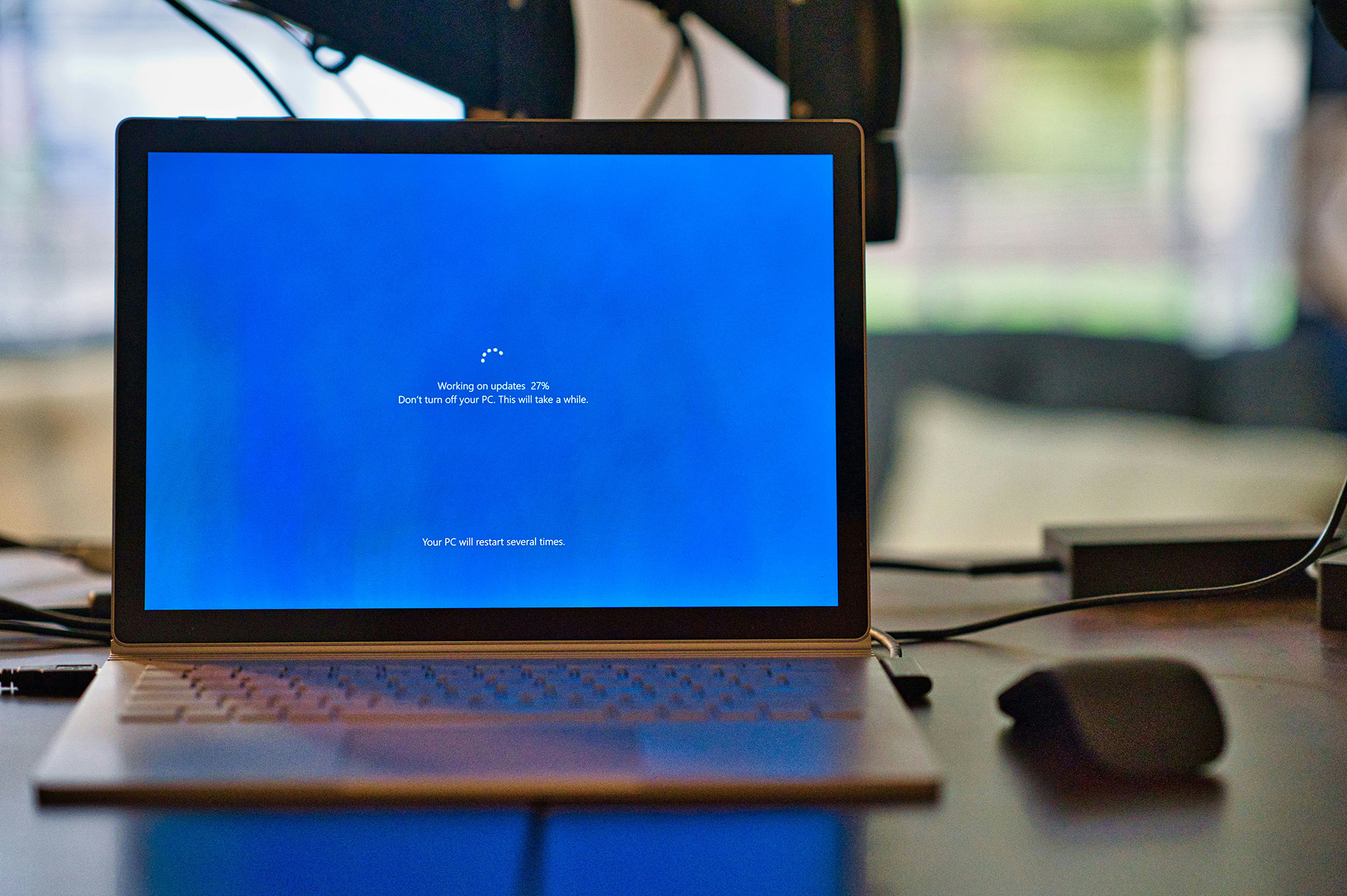 Update Your Operating System
Keeping your system up to date helps your laptop run more efficiently—which can reduce heat and fan noise.
How to update your laptop:
- Windows: Go to Settings > Windows Update > Check for updates and install any available updates.
- MacBook: Go to System Settings (or System Preferences) > General > Software Update and install any available updates.
Quick tip: Turn on automatic updates so your laptop stays optimized without extra effort.
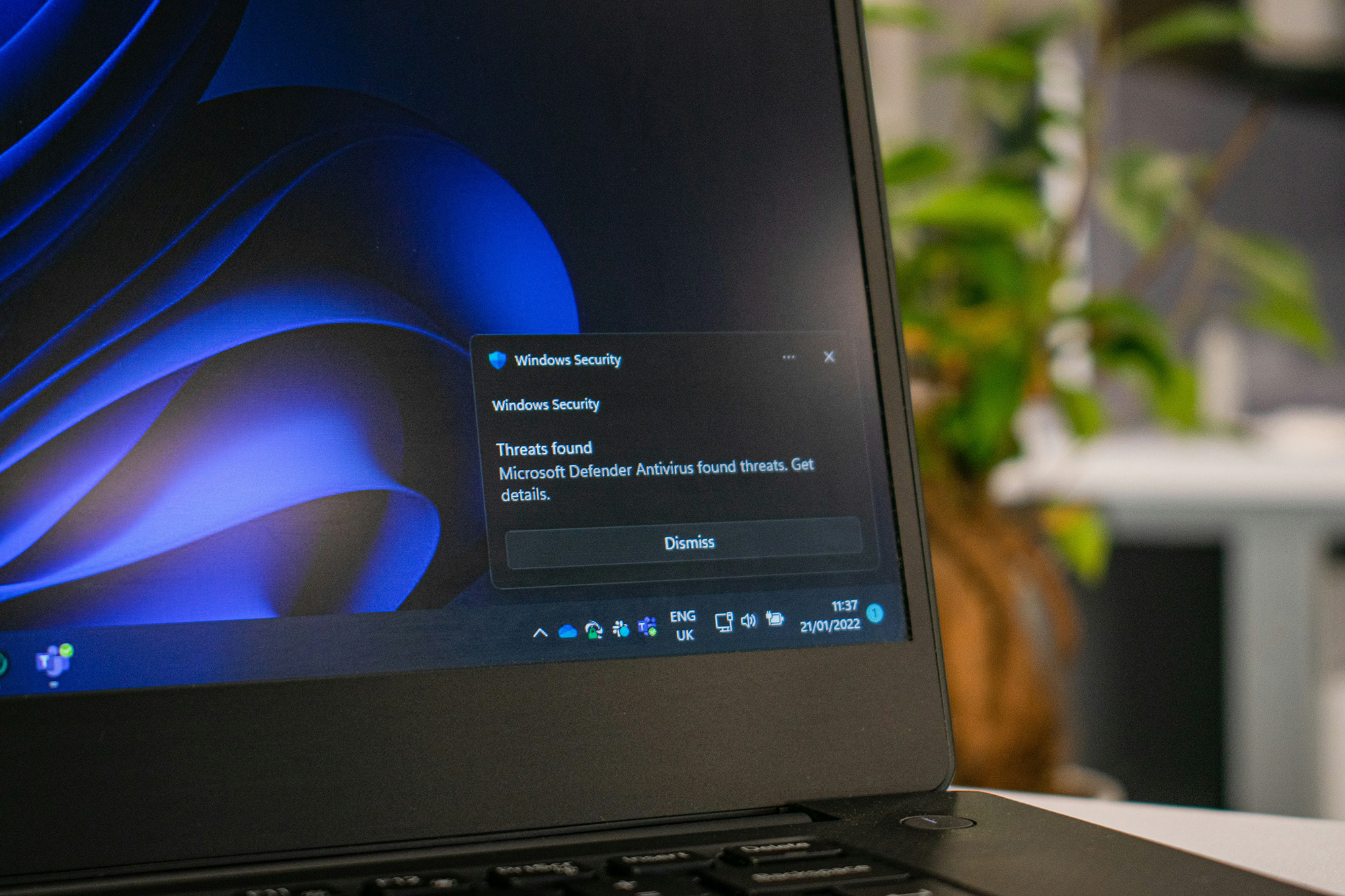 Scan for Malware
Malware can quietly use your system resources, making your laptop work harder—and causing the fan to run louder.
How to run a malware scan:
- Windows: Go to Windows Security > Virus & threat protection > Quick scan (or run a full scan for a deeper check).
- MacBook: Use a trusted antivirus app to scan for malware.
Quick tip: Even a small malware infection can increase CPU usage and heat, so scanning regularly helps keep your laptop cool and quiet.
 Reduce Heat from Heavy Tasks and High-Performance Use
Gaming, video editing, and long video calls can push your system hard, triggering a loud laptop fan.
When your laptop is working at full capacity, it naturally generates more heat—so the fan speeds up to keep things cool.
How to reduce fan noise:
- Lower graphics or performance settings in games and apps.
- Take short breaks during long or intensive tasks.
- Avoid using your laptop in hot environments.
- Close other tabs to reduce overall system load.
- Consider getting a cooling pad.
Quick tip: The less strain your laptop is under, the cooler it runs—and the quieter your fan will be.
FAQs
Is it normal for a laptop fan to be loud?
Some noise is normal, especially during heavy use, but constant noise may mean overheating or airflow issues.
How do I make my laptop fan quieter?
Clean vents, close unused apps, improve airflow, and check for malware and high CPU use.
Can a loud laptop fan cause damage?
Not directly, but the overheating behind it can. If heat isn’t properly managed, it can damage internal components such as the CPU, battery, or motherboard.
How do I know if my laptop fan is broken?
If your fan makes grinding, rattling, or clicking noises, or if your laptop overheats during light use, the fan may be failing. The fan might also stop spinning or cause the laptop to shut down unexpectedly.
Need Help Fixing a Loud Laptop Fan?
If your laptop fan is still loud after trying these fixes, it might be time for a professional repair. The fan itself may be worn out, the thermal paste inside may have dried up, or there could be a deeper hardware issue affecting your laptop’s cooling system.
From deep cleaning and fan replacements to fixing overheating issues, getting expert help can save you time and prevent more expensive damage down the line. Don’t wait for the problem to get worse. Get a free repair quote today and get your laptop checked!