Typing isn’t the only way to use ChatGPT anymore. With ChatGPT Voice Mode, you can have real conversations with AI on your phone or computer, without typing or constantly looking at your screen. This feature makes ChatGPT more natural, hands-free, and even more useful in everyday life. Whether you’re brainstorming ideas, cooking dinner, walking to class, or just prefer talking instead of typing, Voice Mode lets you get instant answers and feedback out loud.
What is ChatGPT Voice Mode?
ChatGPT Voice Mode allows you to speak to ChatGPT and hear it respond with voice. Instead of typing questions and reading answers, you can simply talk and listen. The result feels less like using a tool and more like having a conversation with a person.
And the best thing is that every conversation is transcribed. When the conversation ends, your questions and ChatGPT’s replies appear on-screen and are saved in your chat history. This way, you can easily follow along, revisit past conversations, or switch between voice and text whenever you like.
ChatGPT Voice Mode is available on both mobile and desktop, and we’ll show you how to use it.
How to Use ChatGPT Voice on Your Phone
You can use ChatGPT voice mode on your iPhone or Android phone through the ChatGPT mobile app:
- Download or update the app: Make sure you have the latest version from the App Store or Google Play.
- Open the app and log in.
- Tap the Voice icon in the bottom-right corner of the screen.
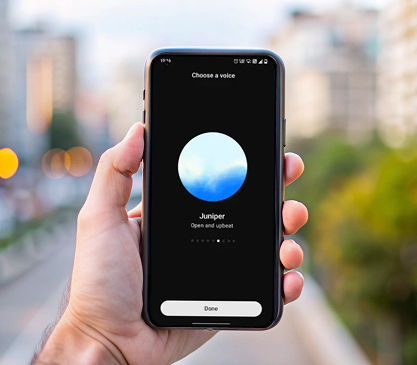
- Choose a voice: You can pick from different AI voices to find one that feels most natural.
- Start talking: Just speak naturally, and ChatGPT will respond out loud in real time.
- Tap the Exit icon on the bottom-right of the screen to end the conversation.
Make sure the ChatGPT app has permission to use your microphone so you can start talking right away.
How to Use ChatGPT Voice on Your Computer
You can also enjoy voice-to-voice chats on your desktop or laptop:
- Go to chatgpt.com in your browser and log in.
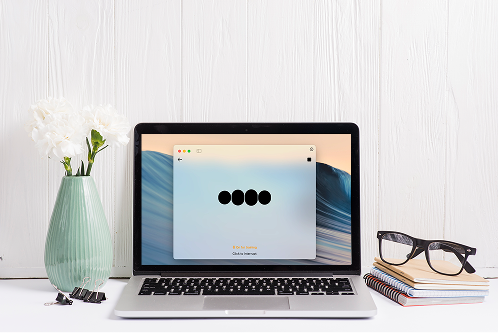
- Look for the Voice icon in the bottom-right corner of the screen.
- Click the icon and allow microphone access when prompted.
- Select a voice from the options.
- Start your conversation. You don’t have to “command” it; just talk like you would to a person.
- Click the Exit icon on the bottom-right of the screen to end the conversation.
You can mute or unmute your microphone while having a conversation by selecting the Microphone icon on the bottom-left of the screen.
FAQs about ChatGPT Voice Mode
Do I need a subscription to use ChatGPT voice?
You need a subscription to unlock the full-featured ChatGPT Voice Mode, which offers the most natural, human-like experience. Free users can still try a limited version, though the conversations may feel a bit less smooth compared to the full version.
Which devices support ChatGPT voice?
You can use ChatGPT voice on iPhones and Android phones through the ChatGPT app. You can also use it on iPads and Android tablets. The Voice Mode also works with any desktop or laptop that has a microphone and speakers or a headset, using the web version of ChatGPT.
Can I change ChatGPT voice?
When you start your first voice session, you’ll be prompted to pick from several AI voices. You can change your choice any time before starting a new session by going to Settings within the ChatGPT app or website, then navigating to the Voice option to select from available male and female voices.
Is ChatGPT voice available in all languages?
The ChatGPT voice mode works best in English, but it supports other widely used languages as well. Accuracy may vary depending on the language and accent.
Talking to ChatGPT is great – when your device is working properly. If your phone, tablet, or laptop has a damaged microphone or speaker, a cracked screen, a dead battery, or any other issue, we can help. The Repair Depot provides reliable repair solutions and high-quality parts for phones, laptops, and tablets at affordable prices. Get your repair quote to start your repair process or your parts quote to fix your device by yourself!